
A time tracker that lives in your Mac menu bar.
Aeto runs in any browser, but the Mac app adds something no browser tab can: a persistent timer in your system menu bar. Context switching is exactly when you forget to track. The menu bar timer is always visible, always one click away, and it keeps running while you work in any other app.
30-day free trialNo credit card requiredmacOS 12+Apple SiliconAlso available: Chrome Extension
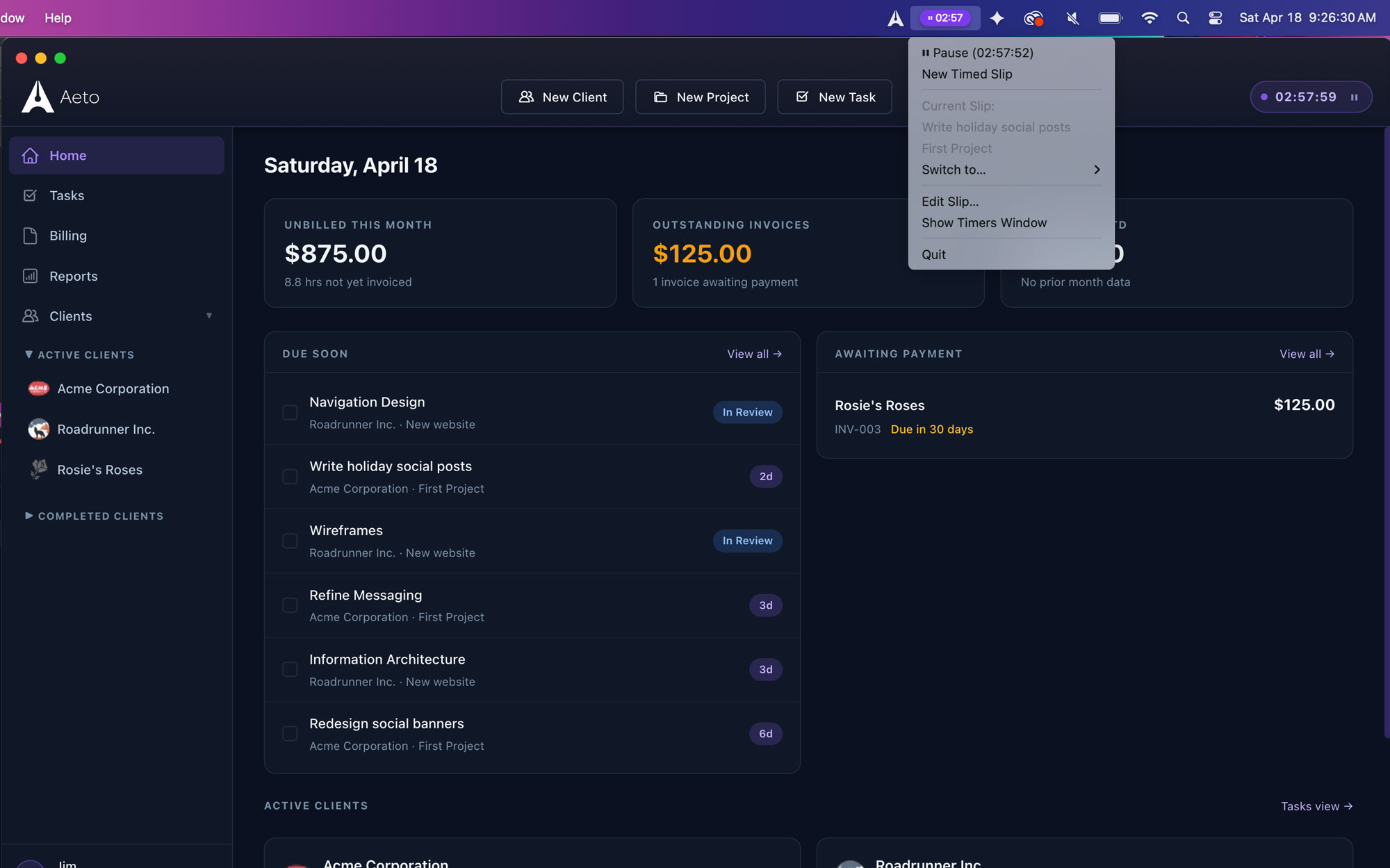
The timer you'll actually remember to use.
Most time tracking tools live in a browser tab or a separate app window. That means switching context every time you start or stop work, and context switching is exactly when you forget to track. The Aeto menu bar timer removes that friction entirely. It's in your macOS menu bar, always visible, and always one click away, regardless of what tool you're working in.
Start a timer from anywhere.
Click the Aeto icon in your menu bar. Select the project and task. The timer starts instantly without opening the app or switching windows.
See your time at a glance.
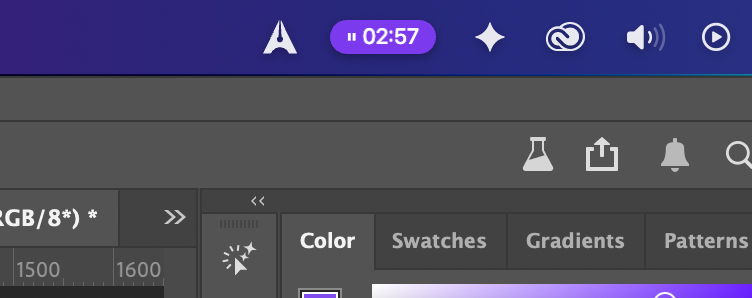
The running time displays directly in the menu bar, so you always know how long you've been working on the current task, even when you're deep in another app.
Stop and log automatically.
Stop the timer from the menu bar when you're done. The time slip is logged immediately to the correct task and project in Aeto and is ready for invoicing.
Switch tasks without breaking flow.
Starting a new timer automatically stops the previous one. Move between tasks throughout your day without manually managing what's running.
Why the menu bar timer is a desktop-exclusive feature.
The menu bar timer runs in your Mac's menu bar and operates in the background while you work in any other app. It's the kind of persistent, system-level tool that only makes sense on the desktop, and it's one of the core reasons Aeto's Mac app exists.
Questions about the Mac menu bar timer.
Everything you're likely to ask before you download the trial.
Q.01What is a Mac menu bar timer?
Mac menu bar timer is a time tracking tool that runs persistently in the macOS menu bar at the top of the screen. It lets you start, pause, and stop timers without opening a separate app window. Aeto's menu bar timer also connects to your projects and tasks so time is logged automatically.
Q.02How do I start a timer from the Mac menu bar?
Click the Aeto icon in the macOS menu bar, select the project and task you're working on, and the timer starts. You don't need to open the Aeto app window. The elapsed time displays directly in the menu bar as you work.
Q.03Does the Aeto menu bar timer work while other apps are open?
Yes. The Aeto menu bar timer runs in the background and is accessible from the menu bar while you work in any other Mac application, including browsers, design tools, and document editors.
Q.04Where does the time go when I stop the menu bar timer?
When you stop the timer, Aeto automatically logs a time slip to the task and project you selected. That time entry is then available in your time slips view and will be included in the next invoice for that client.
Q.05Is the menu bar timer available on the Aeto web app?
No. The menu bar timer requires the macOS system and is available in the Aeto Mac app (macOS 12 or later, Apple Silicon only). If you're on Windows or prefer to stay in the browser, the Aeto Chrome Extension offers a similar one-click timer that lives in your browser toolbar.
Q.06Can I switch between tasks using the menu bar timer?
Yes. Starting a new timer in the menu bar automatically stops the previous one. Aeto handles the transition cleanly so you don't end up with overlapping time entries.