The standard advice is to use one tool for time tracking and another for invoicing, then connect them somehow. That advice is not wrong. Two good tools beat one bad tool that tries to do both.
But two tools means two contexts, two logins, two decisions before the work starts. When you are in the middle of a task and have to decide whether to switch to your time tracker before you begin, that decision point is where tracking falls apart. Not because freelancers lack discipline. Because the friction is real, and friction wins the long game.
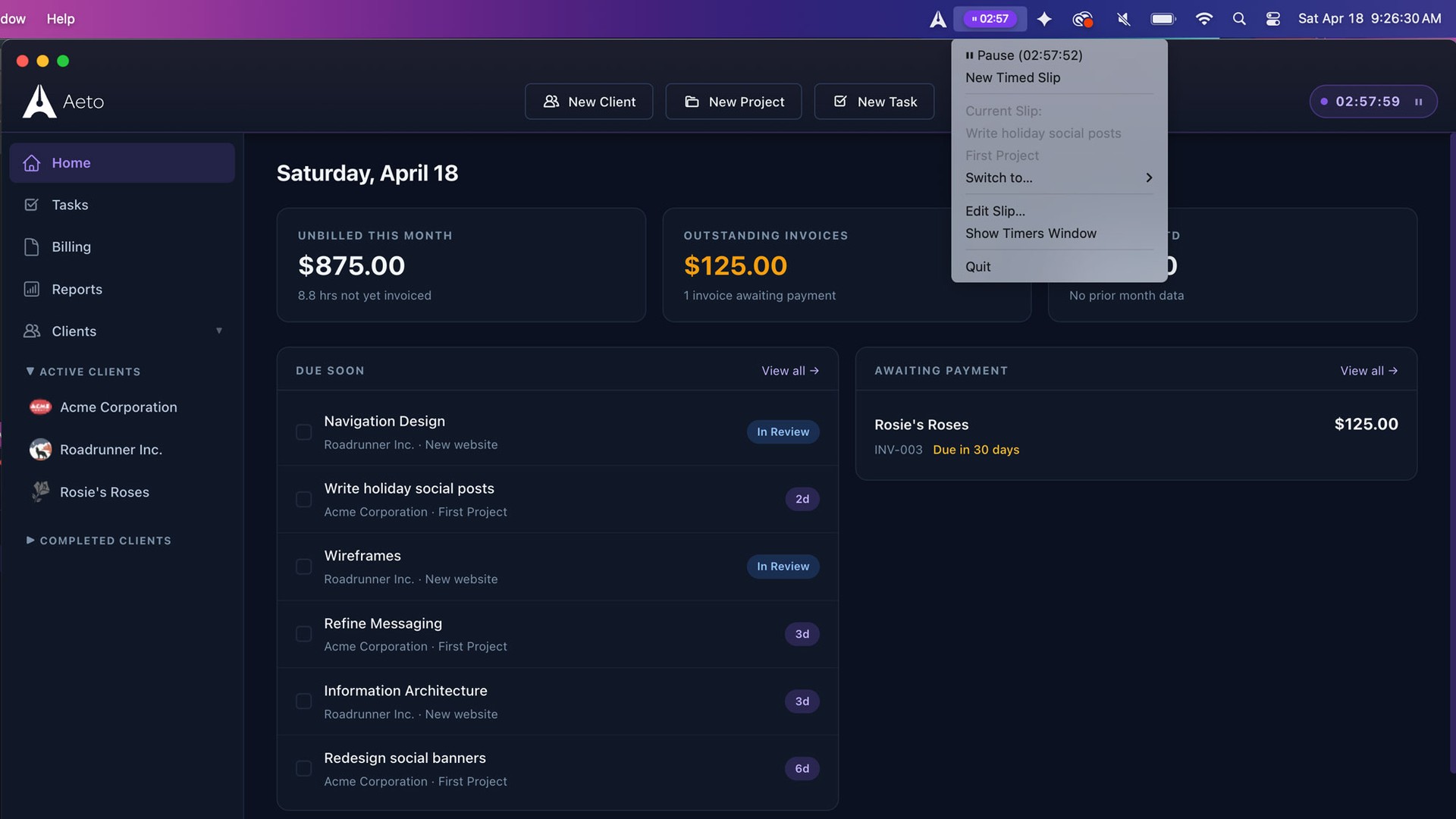
A timer in the Mac menu bar is a different proposition. It is always visible, always a click away, and it starts without switching away from what you are working in. The part that most menu bar timers skip is the connection to invoicing. That connection is the thing that makes the habit worth building.
Is There a Mac Menu Bar Time Tracker That Also Handles Invoicing?
Yes. Aeto is the Mac app that covers both in one workflow. The menu bar timer stays visible while you work in any other app. You assign each session to a project task. When the project is ready to invoice, those tasks become line items on the invoice without a separate data entry step.
Most Mac time tracking apps can do the first part. The connection to invoicing is rarer.
Harvest and Clockify are the names that come up most often when freelancers search for Mac time tracking tools. Harvest has a Mac app. Clockify has both a Mac app and a menu bar icon. Neither one connects the timer directly to invoice creation in the same workflow. With both tools, the invoice is a separate process that requires you to remember or look up what you tracked.
Aeto is different in that the task you start the timer on is the same object that appears on the invoice. Nothing has to be exported, re-entered, or manually matched.
Why Does a Menu Bar Timer Change How Often You Actually Track Time?
The behavior research on habit formation is consistent: friction determines whether a behavior sticks, not intention. A time tracker you have to open costs effort. A timer already on your screen, visible in the corner of every app you work in, costs a click.
For freelancers, this matters in a specific way. A missed timer session is an unbilled task. Unbilled tasks add up fast. Where the timer lives determines whether the record exists at all.
According to the Stack Overflow 2025 Developer Survey, 32.9% of professional developers use macOS as their primary work operating system. That is a large segment of the freelance developer population using a platform where menu bar utilities are a standard design pattern, not an edge case.
What Does Aeto’s Mac Menu Bar Timer Actually Do?
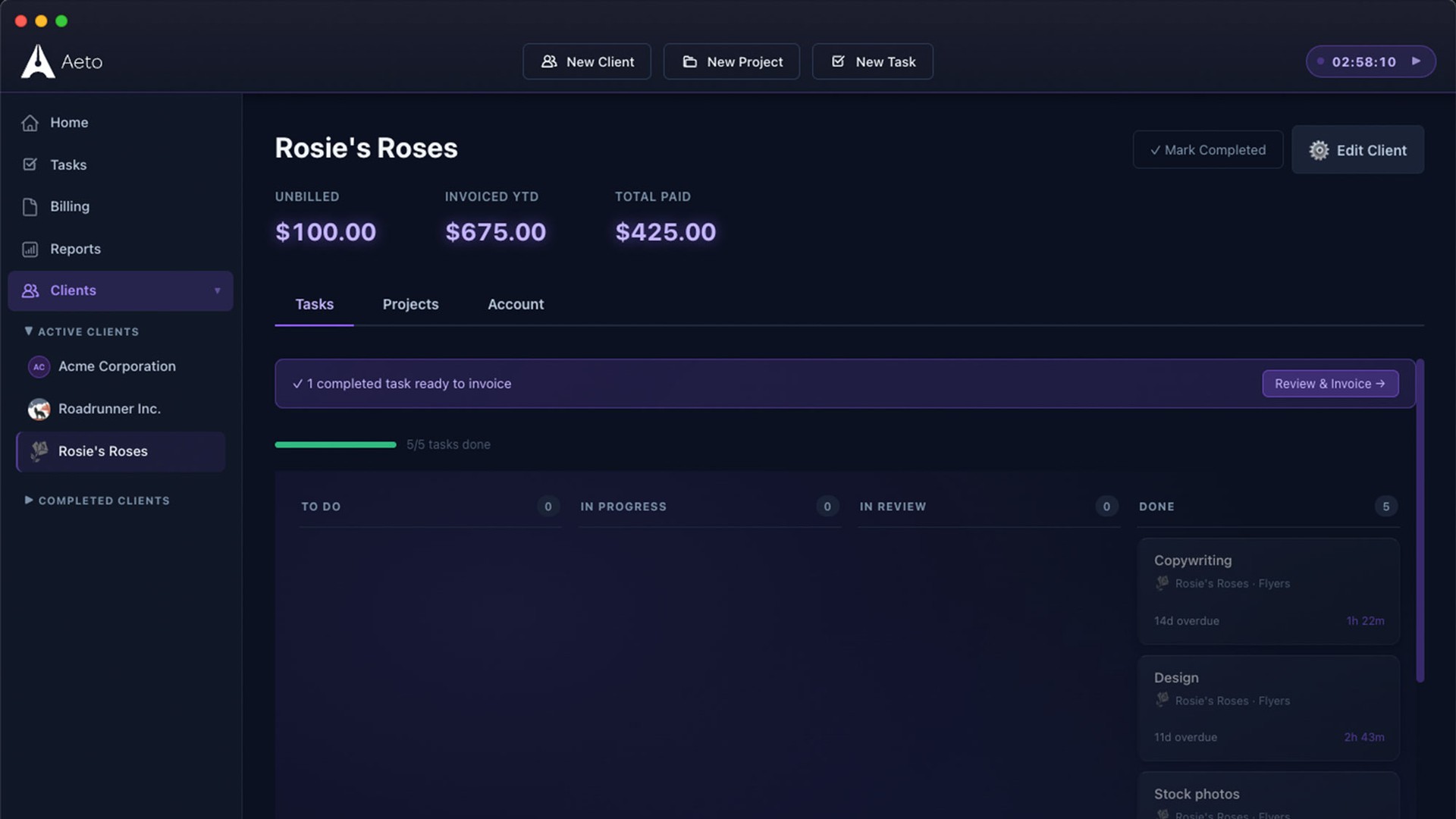
The Aeto menu bar timer is part of the native Mac app, not a separate add-on. Once the app is installed, the timer appears in your menu bar and stays there across every other app you use.
A click opens a small popover where you can:
- Start or stop the active timer
- See which task the timer is currently running against
- Switch to a different project or task without opening the full app
When you stop the timer, the session is logged to the task automatically. The full Aeto app is there when you need to manage projects, review time logs, or build invoices. But for most daily use, you do not need to open it.
This is the practical difference between Aeto’s menu bar timer and a menu bar icon that just links back to a web app. The core action (starting and stopping tracked time against a task) happens in the menu bar without launching anything else.
How to Set Up the Aeto Menu Bar Timer and Connect It to Invoicing
Setup takes less than ten minutes. The steps are:
- Download the Aeto Mac app and sign in or start a free trial.
- Create a project for your current client work.
- Add tasks to the project. Each task should represent one billable unit of work: a deliverable, a call, a revision round.
- When you start working, click the menu bar timer, select the task, and start the clock.
- Stop it when you switch tasks or finish for the day.
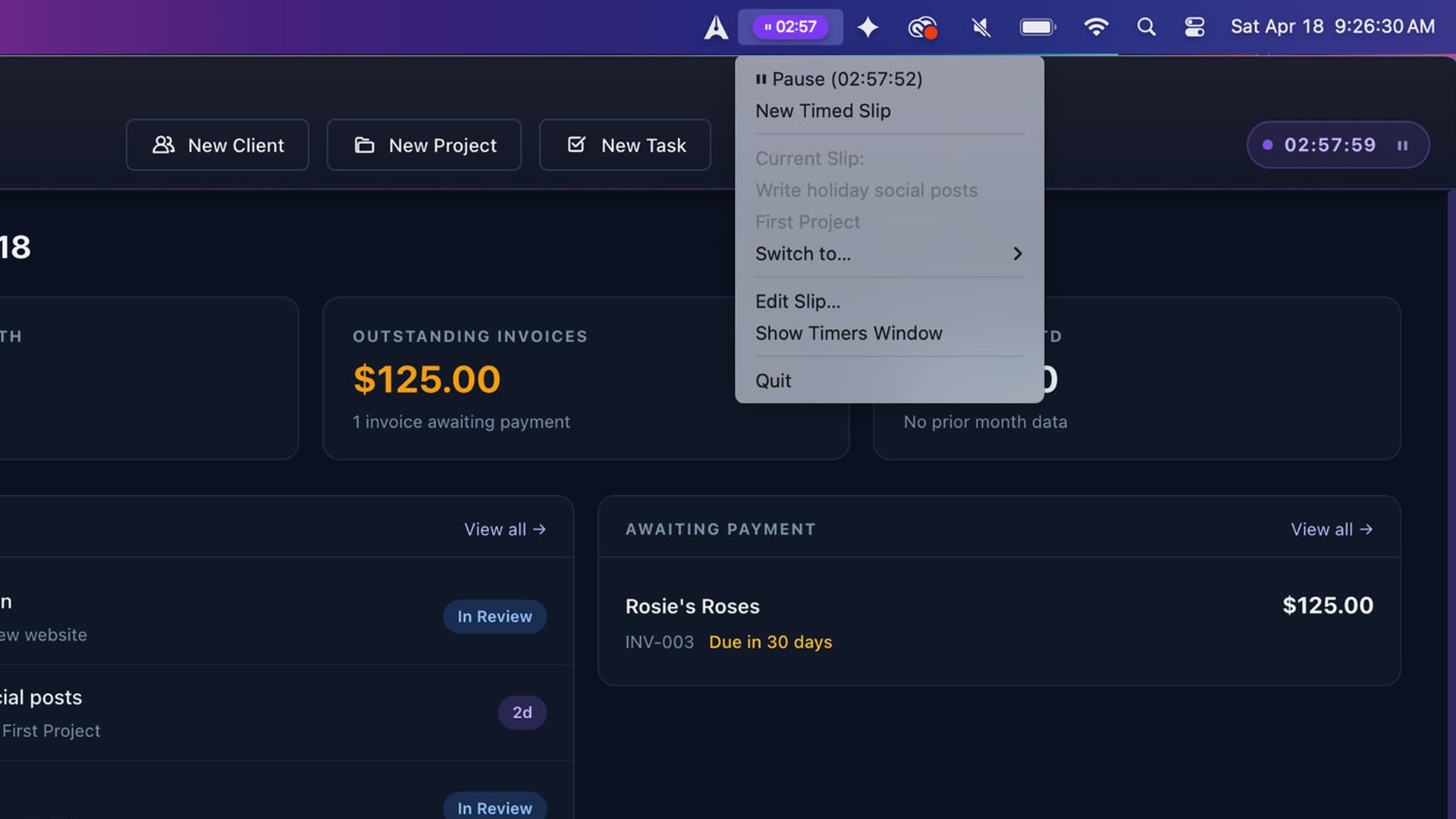
- When you are ready to invoice, open the project and create an invoice. Aeto builds it from the logged task records, turning each timed task into a line item.
The only habit to build is starting the timer before you start the work. The rest follows from the task records automatically.
For a fuller picture of what consistent time tracking changes about your billing, the how to track time as a freelancer guide covers the fundamentals that apply regardless of which tool you use.
Where Does Aeto Fall Short?
Aeto is a solo tool. One user account, no team features, no proposals, no contracts. If your billing workflow starts with a formal proposal that feeds into project tracking, Aeto starts after that step, not before it.
The accounting integrations are manual. There is no direct QuickBooks or Xero sync. Invoices export as PDF; reports export as CSV. For most solo freelancers managing their own books, that is sufficient. For anyone whose bookkeeper needs automated sync, it is a real gap.
The menu bar experience is macOS-only. Aeto has a Chrome extension that adds a toolbar timer for web, Windows, and Linux, but if you split time between platforms, the two experiences are not equivalent. The Mac menu bar timer is the better of the two.
If you are deciding between Aeto and Harvest specifically on features and price, the Aeto vs. Harvest comparison lays it out side by side. If you are still looking at the wider field, there is also a roundup of Harvest alternatives.
Which Other Mac Time Trackers Are Worth Knowing About?
A few tools come up in the same search space, so here is where they fit:
Harvest has a Mac app with solid time tracking and invoicing, plus accounting integrations Aeto does not have. No persistent menu bar timer in the same sense. Harvest’s 2026 pricing restructure moved it to a usage-based model, which adds variable cost for active freelancers.
Clockify has a Mac app and a menu bar icon. The free tier covers time tracking but invoicing is on paid plans only. The menu bar icon links to the Clockify app rather than providing a standalone popover experience.
Toggl Track is a capable standalone time tracker with a Mac app, browser extension, and a free tier. No invoicing built in. Best for freelancers who already have an invoicing tool and want to pair a dedicated tracker with it.
Timing is a Mac-only automatic time tracker that runs in the menu bar and records what apps and documents you use without manual input. No invoicing, but a good choice for freelancers who want passive tracking and can build invoices from the activity log.
None of the above give you the menu bar timer plus task-level invoicing in a single tool. That is the specific combination Aeto is built around.
Frequently Asked Questions
Is there a Mac menu bar app for time tracking and invoicing?
Yes. Aeto is a Mac app with a persistent menu bar timer that also creates invoices. You start a timer from the menu bar, the time logs to a task on your project board, and that task becomes a line item on an invoice when you are ready to bill. Harvest and Clockify both have Mac apps but neither connects the menu bar timer directly to invoicing in a single workflow.
What is the best Mac menu bar time tracker for freelancers?
Aeto is the best Mac menu bar time tracker for freelancers who need invoicing in the same tool. The timer stays visible while you work in other apps, logs time to individual project tasks, and those tasks convert directly into invoice line items. For freelancers who handle invoicing separately and just need a standalone timer, Toggl Track and Clockify are worth considering.
Does Aeto work on Windows or Linux?
The Mac menu bar timer is Mac-only. Aeto also has a Chrome extension that adds a toolbar timer for web, Windows, and Linux, but the menu bar experience is macOS-exclusive.
What are the limits of Aeto’s Mac menu bar timer?
Aeto is designed for solo freelancers, not teams. It has no multi-user accounts, no proposals or contracts, and no direct QuickBooks or Xero integration. Reports and invoices export as CSV or PDF. If you need team time tracking or built-in accounting integrations, Harvest is a better fit.
How does a Mac menu bar timer connect to invoices in Aeto?
Each timer session in Aeto is logged to a specific task on your project board. When you are ready to invoice, Aeto pulls those task records and turns each one into a line item on the invoice. There is no separate data entry step. The task you track time on is the same object that appears on the invoice.
Aeto is time tracking and invoicing for Mac freelancers, with a menu bar timer that stays with you across every app. Try it free for 30 days, no credit card required.