
Most of the comparisons you’ll find for browser time trackers rank them by how many web apps they plug into. Toggl Track works inside more than 100. Clockify works inside 50-plus. That number gets treated as the score.
I think it’s the wrong score. A browser timer for billable work has one job that matters: put every minute on the right client and task, then get that minute onto an invoice. Where the start button lives is a convenience. Where the time goes after you press stop decides whether you get paid for it.

What Is the Best Chrome Extension for Tracking Billable Time?
The best Chrome extension for billable time is the one that attaches each session to a client and task that flows straight into an invoice. If you want that in one tool, Aeto’s Chrome Extension starts and stops task timers from the toolbar, and the time lands on the same tasks Aeto turns into invoice line items.
If you already have an invoicing tool you like and only want a timer, Toggl Track and Clockify have the deeper extensions. Both put timer buttons inside the web apps you already use. Neither one closes the loop to an invoice on a free plan.
So the honest answer depends on one question: do you want your timer and your invoice in the same place? If yes, look at Aeto. If no, look at Toggl Track or Clockify, and accept that you’ll move the hours to your invoice yourself.
Why Track Billable Time in the Browser at All?
For many freelancers, the browser is the office. A copywriter can spend a whole day in Google Docs, and a developer in GitHub, without opening anything else. A desktop timer you have to switch to is one more window between you and the work.
Chrome is also where most of that work happens. StatCounter’s desktop browser data puts Chrome at 65.09% of desktop browser use worldwide in September 2026, far ahead of Edge at 14.64% and Safari at 8.06%. A Chrome extension reaches most freelancers, no matter which operating system they use.
The habit question matters more than the platform question, though. A timer you can start in one click from the window you’re already in is a timer you’ll actually start. The time tracking guide covers why the record has to exist before the invoice can.
What Should a Chrome Timer Do for Billable Work?
A browser timer for client work should do four things. Anything beyond these is a bonus.
- Start and stop in one click, from wherever you are in Chrome.
- Tie every session to a client and a specific task, not a loose description you’ll decode later.
- Show you what’s running, so a forgotten timer doesn’t bill two hours of lunch to a client.
- Sync with the rest of your system, so the hours reach your invoice without retyping.
Most extensions handle the first and third points well. The second and fourth are where they split. A timer that logs “worked on homepage” with no task attached leaves you to sort it out at invoice time, and that’s the moment small items fall out. The invoice audit shows how often that happens: short calls and quick fixes are the first things memory drops.

How Do Toggl Track, Clockify and Harvest Compare in Chrome?
All three have mature Chrome extensions. They differ most in what happens after the timer stops.
Toggl Track has the widest reach. Its browser extension adds a timer button inside more than 100 web apps, and the official integration list includes Google Docs, GitHub, Gmail, Trello, Asana, Jira and Notion. The extension works on the free plan. Toggl Track has no built-in invoicing, so you’ll export hours and bill somewhere else.
Clockify is the strongest free option. Its Chrome extension starts timers inside tools like Trello, Asana and Jira, detects idle time when you step away, and has a Pomodoro timer and reminders for forgotten timers. Clockify’s tracking is free, but invoicing sits on paid plans.
Harvest’s Chrome extension puts a timer in the toolbar and adds timers to GitHub issues and pull requests, plus Asana, Basecamp and Trello. Harvest does include invoicing, though its 2026 pricing change added usage fees on top of the per-seat price. The Harvest alternatives roundup breaks that down.
If you design in Figma, check the integration list before you assume a button will be there. Figma isn’t on Toggl Track’s current list, so you’d start that timer from the toolbar like any other.
What Does Aeto’s Chrome Extension Do, and What Doesn’t It Do?
Aeto’s extension is deliberately small. According to its Chrome Web Store listing, you can start a timer on any task from the popup, stop the running timer with one click, see the running task, project and elapsed time, and watch elapsed time on the toolbar icon while a timer runs.
The difference is what the timer is attached to. Every session goes on a task in a specific project for a specific client, the same tasks that sit on your Aeto board. When the work is done, Aeto builds the invoice draft from that tracked time. There’s no export step and no matching hours to line items by hand. The task-to-invoice workflow walks through that loop in more detail.
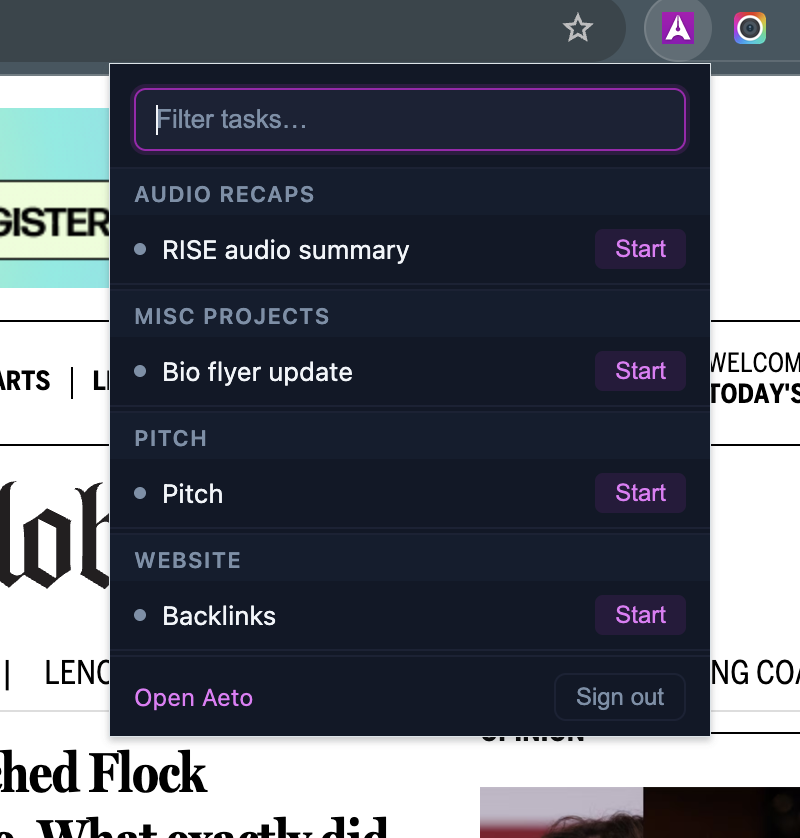
Now the limits, because they’re real:
- It works from the toolbar popup only. It doesn’t add timer buttons inside Google Docs, GitHub or other web apps the way Toggl Track and Harvest do.
- You start timers on tasks that already exist in Aeto. If you want to type a free-form description and sort it out later, Toggl Track or Clockify fit that style better.
- Aeto has no team accounts. One seat per subscription, built for solo freelancers.
- On Windows, the extension plus the web app is the whole Aeto experience. There’s no native Windows app, and the Mac menu bar timer is macOS-only.
- It needs an Aeto account. That’s $10/month or $100/year after a 30-day free trial, as of October 2026, while Toggl Track’s and Clockify’s extensions work on free plans.
If you need a free timer with buttons in every app you use, Aeto isn’t that. If you want the time you track in Chrome to already be on the invoice, it is.
Which Chrome Time Tracker Should You Pick?
Pick based on where your invoice lives today.
If you invoice in a separate tool and don’t want to change it, Toggl Track’s free extension is the most capable pure timer. If you want free tracking plus idle detection and reminders, choose Clockify. If you bill from GitHub issues and don’t mind usage-based pricing, Harvest’s extension fits that work well.
If you’re a solo freelancer who wants tracked time and invoices in one record, with a Chrome timer for the days you live in the browser, that’s what Aeto’s time tracking is built for. Freelance developers on Windows or Linux get the same task-level tracking through the extension and web app.
Try This: The One-Week Browser Timer Test
Before you commit to any extension, run this for one working week.
- Install one extension and pin it to your Chrome toolbar so it’s always visible.
- Before you open a client’s doc, repo or design file, start the timer on a named task for that client.
- At the end of each day, check for sessions without a task or client attached. Count them.
- On Friday, try to build an invoice from the week’s time. Note every step where you had to retype, merge or guess.
The extension that leaves you the fewest untagged sessions and the fewest Friday steps is the right one for you. The number of apps it plugs into won’t tell you that.
Frequently Asked Questions
What is the best Chrome extension for tracking billable time?
The best one connects each timer session to a client and task that feeds an invoice. Aeto’s Chrome Extension does that for solo freelancers, syncing with Aeto’s web and Mac apps where tracked time becomes invoice line items. Toggl Track and Clockify have the richest extensions, with timer buttons inside dozens of web apps, but Toggl Track has no invoicing and Clockify keeps invoicing on paid plans.
Can a Chrome extension track time inside Google Docs or GitHub?
Yes. Toggl Track’s extension adds a timer button inside Google Docs, GitHub, Gmail, Trello, Asana, Jira and other apps. Harvest’s extension adds timers to GitHub, Asana, Basecamp and Trello. Clockify’s extension starts timers from inside tools like Trello, Asana and Jira. Aeto’s extension runs from the Chrome toolbar popup instead of adding buttons inside other apps.
Does Aeto’s Chrome Extension work on Windows?
Yes. The extension runs in Chrome on any operating system, and Windows users can pair it with the Aeto web app at app.aeto.app. There is no native Windows app and no menu bar timer outside macOS, so on Windows the extension plus the web app is the whole Aeto experience.
What can’t Aeto’s Chrome Extension do?
Aeto’s extension starts and stops timers on existing Aeto tasks, shows the running task and elapsed time, and syncs with the web and Mac apps. It does not add timer buttons inside other web apps, Aeto has no team accounts, and it requires an Aeto account ($10/month or $100/year after a 30-day free trial, as of October 2026).
Do I need a separate invoicing tool if I use a free Chrome time tracker?
Usually, yes. Toggl Track’s free extension tracks time but Toggl Track has no built-in invoicing, and Clockify puts invoicing on paid plans. If you use a free tracker, plan on exporting time and rebuilding it in an invoicing tool, or pick a tool where tracked time and invoices live in the same record.
Aeto is time tracking and invoicing for solo freelancers, with a Chrome Extension, a web app and a Mac menu bar timer that all log to the same tasks. Try it free for 30 days, no credit card required.